
Practical AI, Inside Revit
How we put AI image generation where the work actually happens, and what it took to make it a tool instead of a toy.
Practical AI looks boring on purpose
Search "AI in architecture" and you'll mostly find two genres. There's the chatbot bolted onto a toolbar, and there's the dazzling one-shot render that has no real relationship to anything you'd actually build. Both make great demos. Neither one survives contact with a real workday.
I build and maintain product families, the parametric Revit content that manufacturers use to specify real, manufactured objects. I wanted to know whether AI image generation could earn a place in that workflow, not as a party trick, but as something I'd actually reach for on a deadline. So I built it directly inside Revit. At Fetch, the families we publish stand in for products a customer can order, so "looks cool" was never the bar. The image model turned out to be the easy part. Here's what actually made it practical.
1. It lives where the work is
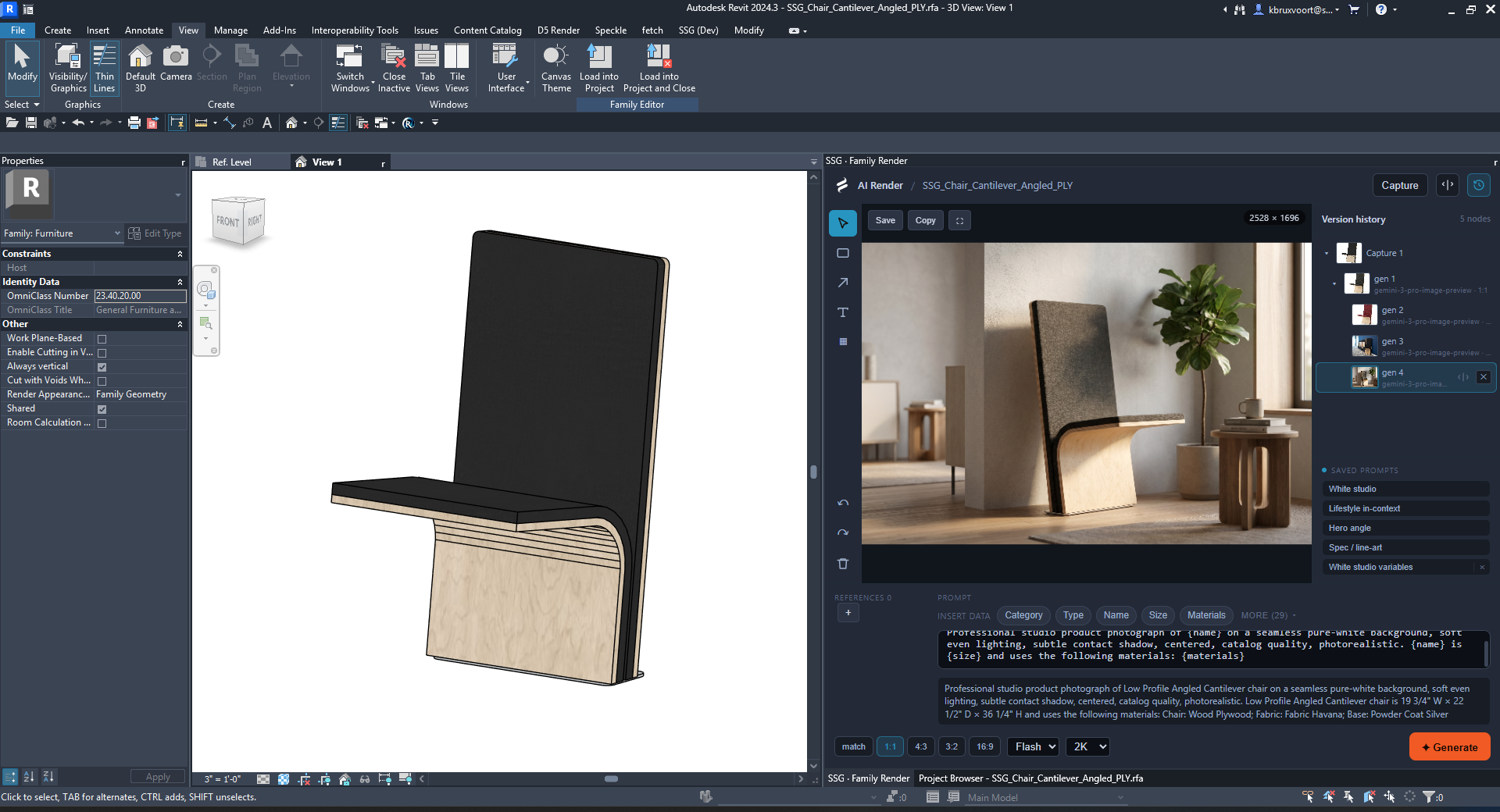
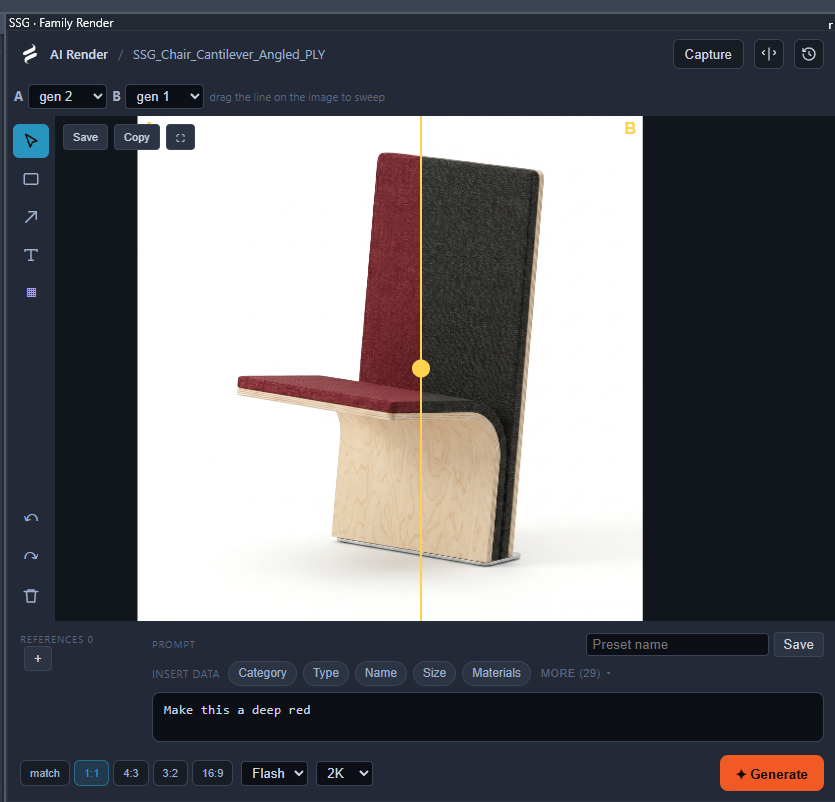
The whole thing is a panel inside Revit. You capture the current family view, and that capture becomes the starting image the model works from. No exporting, no jumping out to a separate web tool, no re-importing anything. The thing you're already looking at is the thing the AI sees.
That sounds like a small detail. It's actually the difference between a workflow you'll use and a chore you'll do once for a screenshot and never touch again.
2. The model writes its own prompt
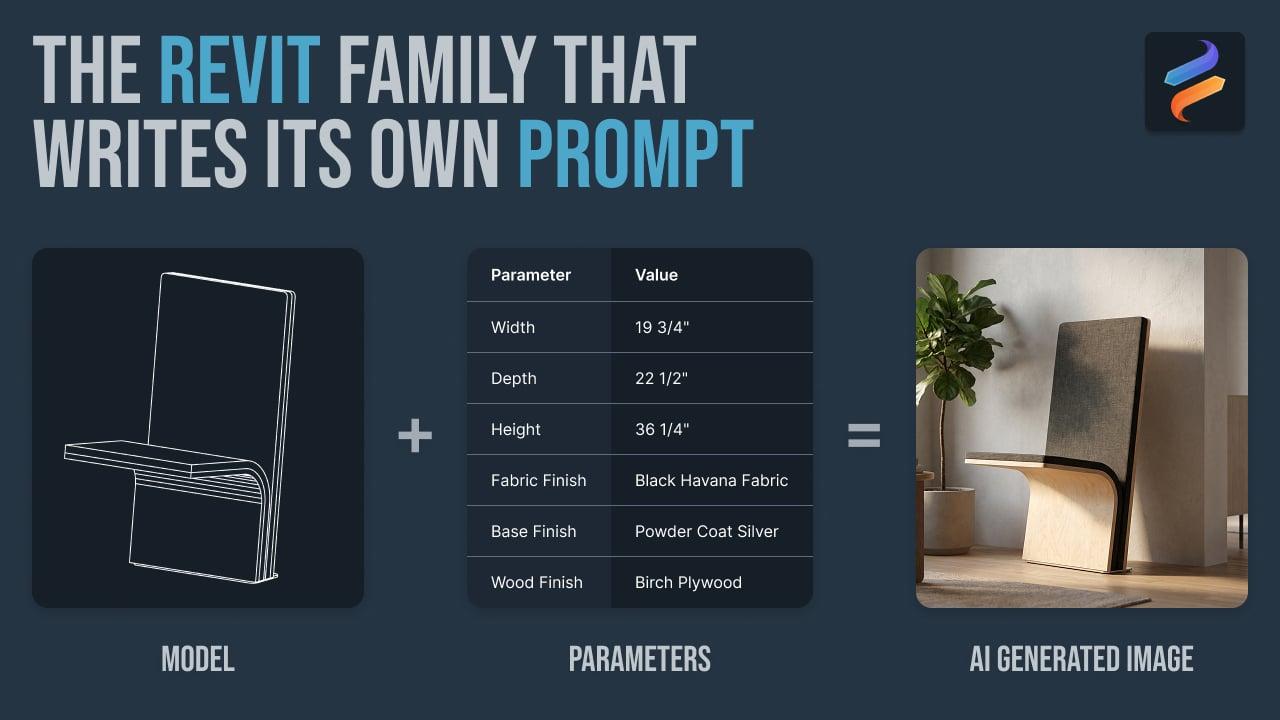
This is the part that sells it for me. A product family isn't a blank image. It already knows things. Its category, its name, its dimensions, its materials and finishes are all sitting right there as parameters. So instead of me typing "a 22-inch auditorium seat with a walnut tablet arm, a black powder-coat frame, and grey mesh fabric," the panel reads it straight from the model. I click, and the prompt fills itself in.
You can save these as templates too, with placeholders that re-fill for whatever family or type is active. I write "studio product photo of {name}, {materials}, on a seamless white background" once, and it works across every variation.
The interesting question is whether it actually improves the result. In one of my tests, pulling in the real materials corrected a fabric the model had guessed was grey (it's white), and it picked up a plywood edge I never would have thought to describe. The model stops guessing and starts rendering the actual product.
3. Edit like a designer, not a slot machine
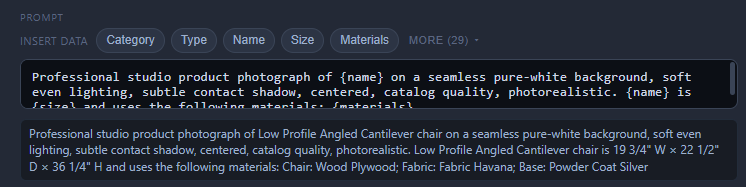
A one-shot generator is a slot machine. You pull the lever and hope. Real editing is local and intentional, so the panel lets you mask a region, brush or lasso just the seat, and regenerate only that area with a new instruction. Everything outside the region comes back exactly as it was, because the regenerated part gets composited back on top of the original.
The phrase I keep coming back to is "stage it, don't redesign it." For a project visualization, a little creative drift is fine. For a product, it's a defect. If the AI quietly changes a drawer count or a proportion, you've just misrepresented something a customer can buy. Local edits keep the AI doing materials, lighting, and staging, and keep it out of redesigning a real object.
4. It remembers
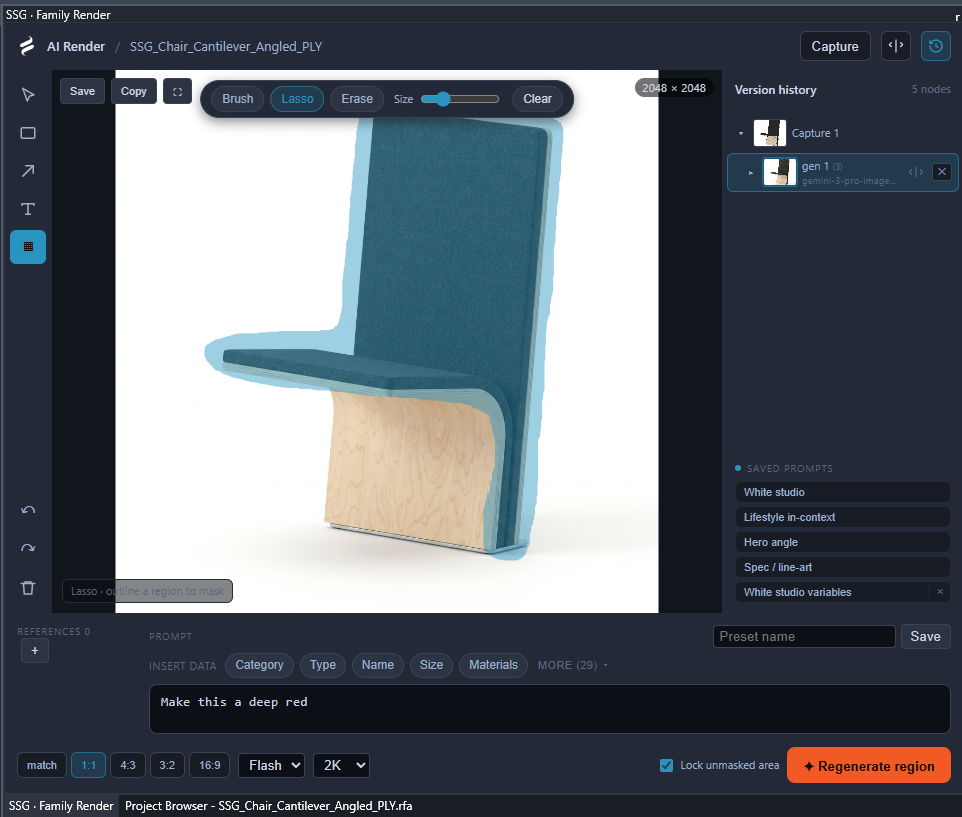
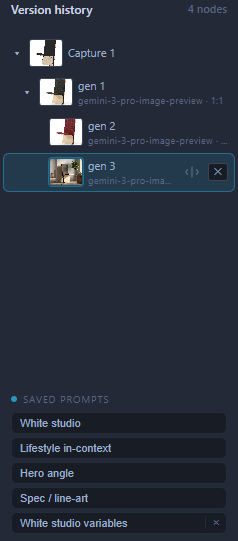
This is the part almost nobody talks about, and I think it might be the most important one. Every generation is saved as a node in a version tree, with the full prompt and settings that produced it, branching off whatever you were iterating on. "Make four variations" is four branches. "Try a different direction" branches off any earlier image, not just the most recent one.
And it sticks around. The tree survives closing and reopening, and it's tied to the family itself, so a family carries its own render history with it. Because each node already stores its settings, that history doubles as a record of how you got to a given image, instead of a folder full of files named final_v3_FINAL.png. The moment you stop treating each image as disposable, this stops being a novelty and starts being something you build on.
5. Model-agnostic, and why that's not just a checkbox
It runs on Gemini's Nano Banana today, but the model sits behind an abstraction, so swapping in a different cloud model, or a local one, doesn't change the workflow. People say "model-agnostic" like it means flipping a setting. It's deeper than that. The same action a user takes has to map onto genuinely different model capabilities.
Masking is the clearest example. A Stable Diffusion style model takes an explicit mask and only repaints those pixels. Gemini leans on describing the region in plain language instead. "Regenerate this region" has to mean both, so we enforce the local edit on our side by compositing the masked area back over the untouched original, no matter what the backend does under the hood. The same idea applies to locking geometry in place. On one kind of model you pin the shape with a depth or edge reference; on another you do it with careful prompting and a clean capture. The abstraction layer isn't a convenience feature. It's what lets one workflow ride on top of very different models as they improve, or as one of them needs to run on your own hardware.
Where this goes next
Everything above is built around individual products, because that's the work I do every day. But the same approach scales straight up to projects. A room knows things too. Its name, its area, its occupancy, its finishes are all data you could pull into a prompt the same way we pull in a product's materials, so a render of a space could start grounded in the actual model instead of a blank description. That's the direction we're most excited about at Fetch.
The takeaway
None of this is about a smarter image model. It's about the scaffolding around it. AI that's grounded in the model you're already working in, fed by the data that model already holds, edited like a draft instead of a lottery ticket, and remembered so your iteration actually compounds, all on a layer that doesn't care which model is behind it.
That's the boring, practical version. It's also the version you'll still be using next week.