
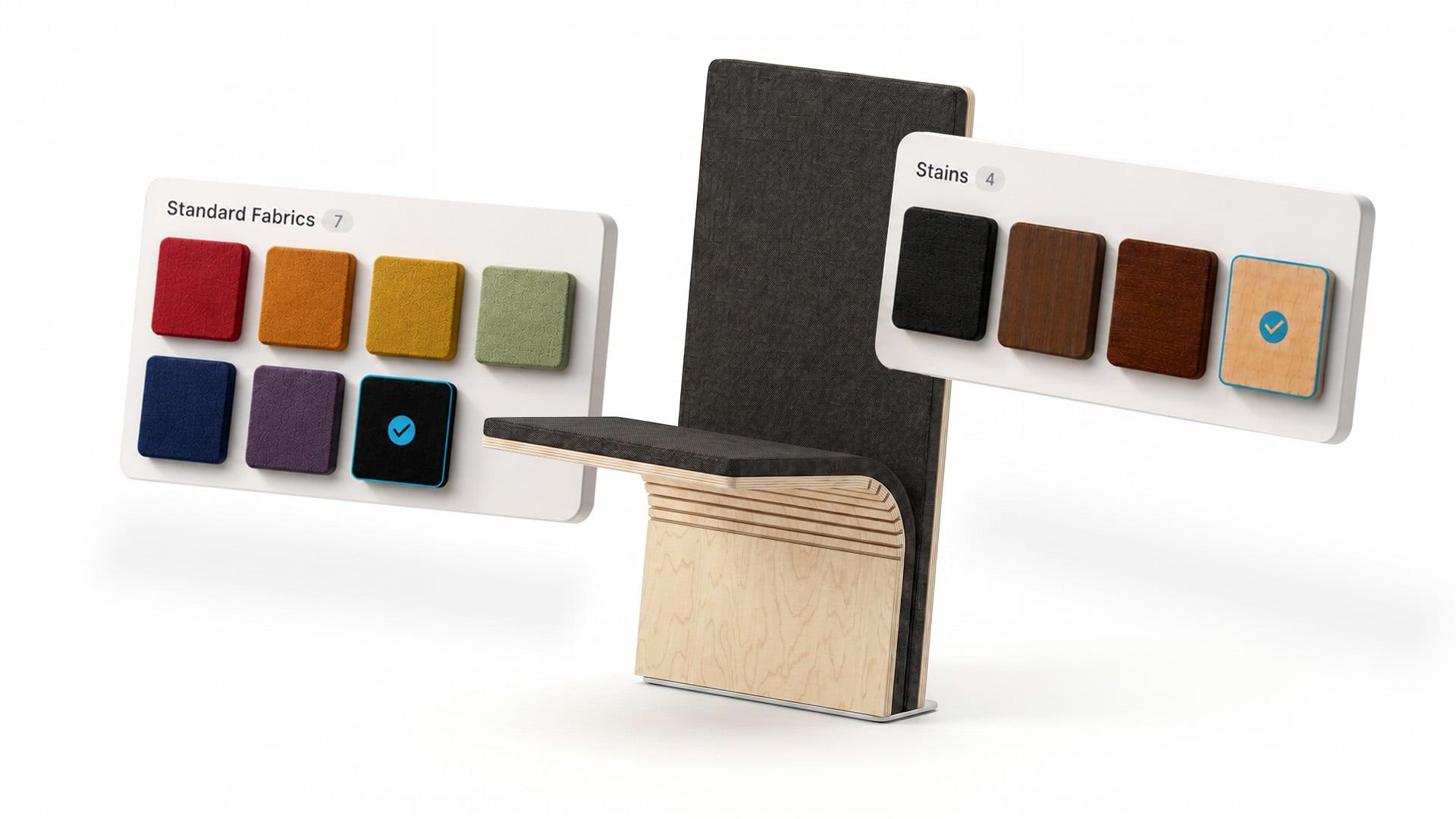
It's the morning of a client presentation. The rendering that looked perfect on your machine last night just came back from cloud rendering flat gray, with the error "render appearance images are missing." Somewhere between your desk and the cloud, Revit lost your textures. Again.
If you work in Revit, you've probably lived some version of that morning. Materials are one of the most painful parts of the whole workflow, and everyone has a story about them.
Starting today, we're doing something about it. Fetch Materials is live in the latest update. When you pull a product from Fetch, you can now pull in the actual finishes the manufacturer offers for it, apply them across your project, and save that setup so it sticks, all with texture handling that actually holds up.
This isn't a generic material library, and it isn't another ADSKLIB file to manage. These are the real finishes for the real products in your model.
Here's why that matters and what's in this release.
Why Revit Material Management Is Still Broken
If you've spent any time in Revit, you already know where the material pain shows up.
Textures go missing. Revit points to texture images by file path instead of embedding them in the model. So the moment a model moves to another machine, goes out to a consultant, or heads to cloud rendering, those paths can break. Materials fall back to flat gray and cloud renders fail outright.
Sharing materials between projects is a pain. There's no clean way to move a single material from one project to another. Transfer Project Standards creates duplicates and renames things when there's a conflict. Copy-pasting a family drags along every material attached to it, not just the one you wanted.
Naming conflicts quietly overwrite your work. Revit lets multiple materials share an appearance asset, which is the data that controls how a finish looks under light. When two products both ship an asset named "Generic" (and a ton of manufacturer content does), the first one loaded wins. No warning. You find out when the rendering looks wrong.
Library management is held together with duct tape. Central library files, template tricks, configuration redirects. None of it carries all the right data, standards drift over time, and staying compliant depends on every modeler doing the right thing every single time.
Files bloat and slow down. Borrowed manufacturer families pile up duplicates like "Concrete (2)," "Default Material 14," and "Wood - Walnut (3)." They inflate file size, slow Revit down, and make renders look different from one teammate to the next.
We've written before about how to fix material chaos in Revit by hand. The short version: it takes a lot of discipline, forever. This update is about taking that work off your plate.
Manufacturer Materials, Tied to the Products They Belong To
Every material library out there today is generic. Autodesk's built-in libraries, custom ADSKLIB files, third-party tools: all of them hand you a big bucket of "wood," "concrete," "carpet," and "fabric," and leave it to you to figure out which one comes closest to the product you actually specified. That translation step is where accuracy gets lost.
Fetch Materials works the way Fetch has always worked. For years, Fetch has been where you get real manufacturer products into Revit: families built to spec, maintained, and ready to drop into your model. Materials are the same idea. Since the products in your model come from Fetch, the finishes their manufacturers offer can come along with them. Pull a chair into your model and that chair's upholstery options are sitting right on the family card, ready to apply in one click. No guessing which generic material is close enough, and no digging through other libraries hoping something matches.
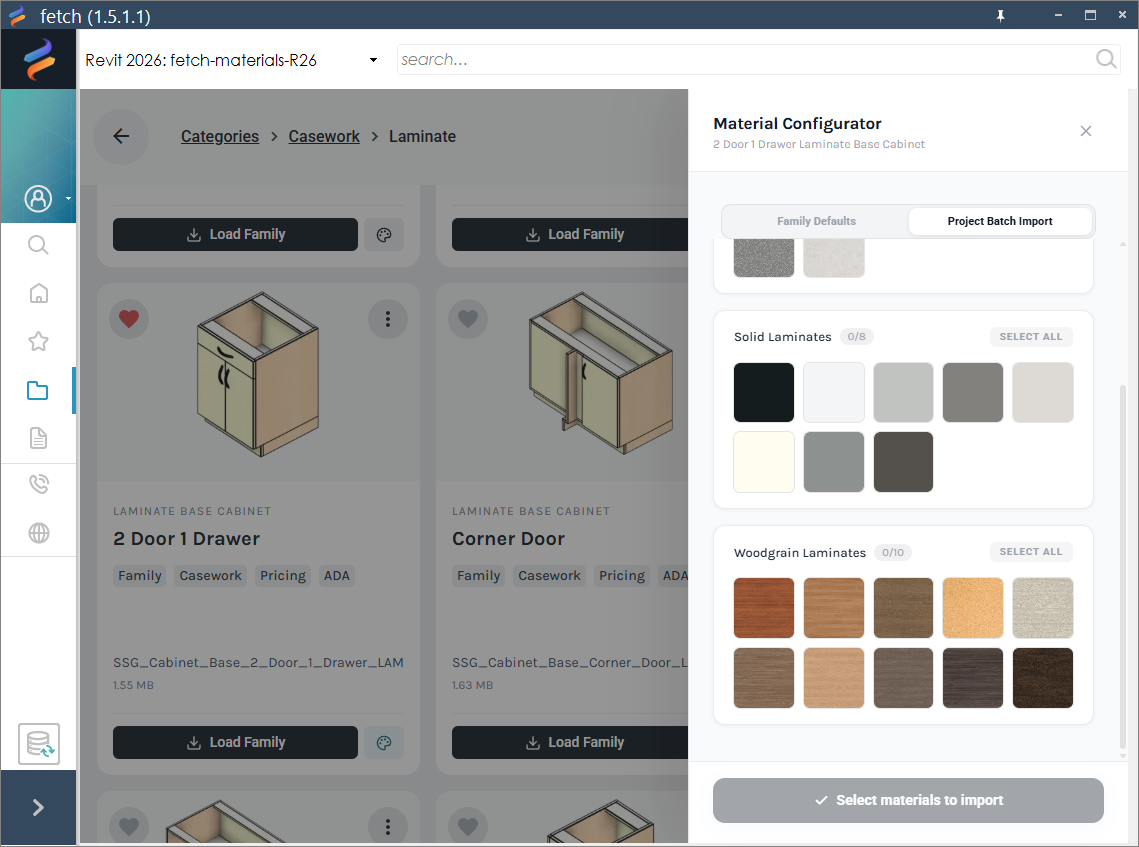
Every finish shown is one the manufacturer actually offers for this product.
What this means depends on where you sit:
- If you're a designer, your renderings show what was actually specified. That means fewer surprises in client presentations and less rework after reviews.
- If you're a manufacturer, your products show up in models looking the way they should. Better representation, and better odds of staying in the design.
- If you manage firm standards, materials become product-driven instead of generic-library-driven, which is how design actually works anyway.
None of this works without the family catalog underneath it. It's the same governed, maintained content you already rely on, now with finishes attached.
What Fetch Materials Delivers Today
This release covers the whole loop: pick the right finishes for a product, apply them, and keep them, and have them still be there when the model lands on someone else's machine.
In the Fetch app
Family cards now have a Materials section that shows the finishes available for that product, with swatches and previews. Materials stay attached to the products they belong to, so there's no separate search and no separate library to dig through.
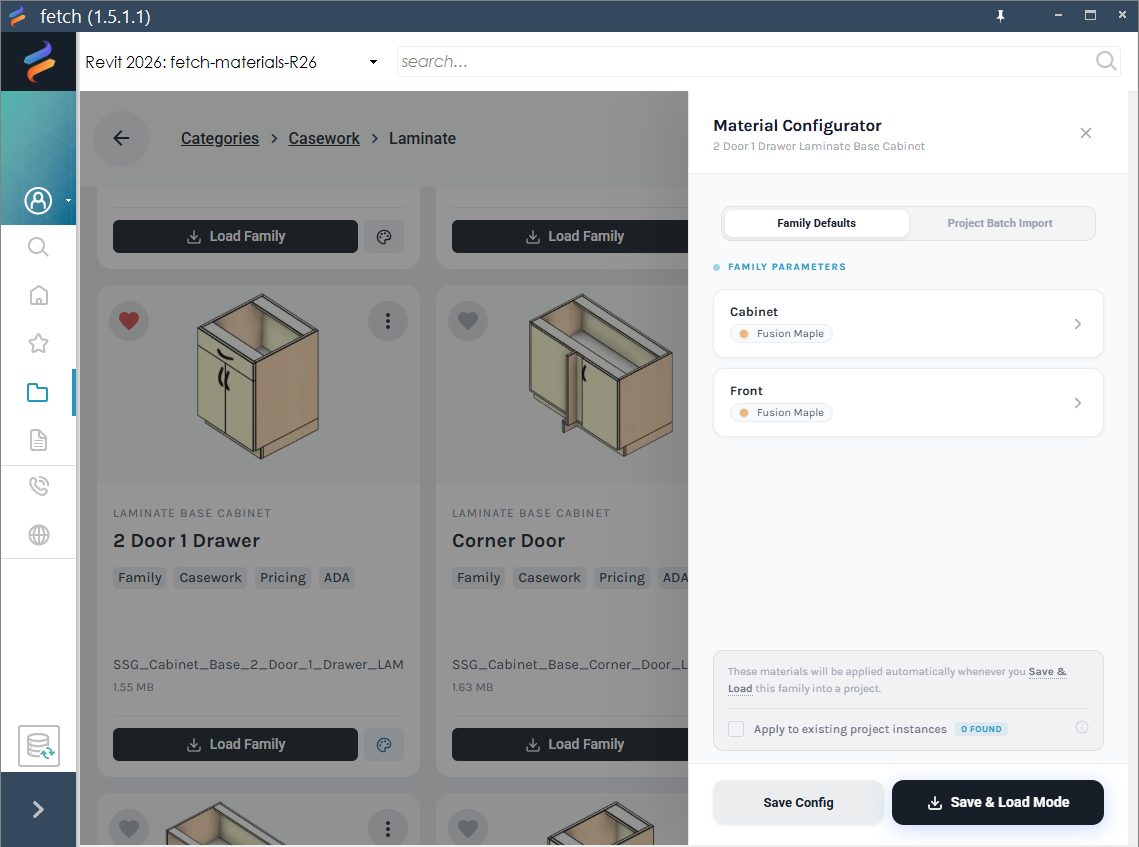
The Materials section lives right on the family card, next to the product it belongs to.
And you're doing more than just loading materials into the project. You can:
- Pick a finish for each material parameter on the family, so the right material lands on the right part of the product.
- Apply your choices to every instance of that family already placed in the project.
- Save the configuration. The next time you load that family, it comes in with your materials already selected.
- Batch import materials when you want to bring several into the project at once.
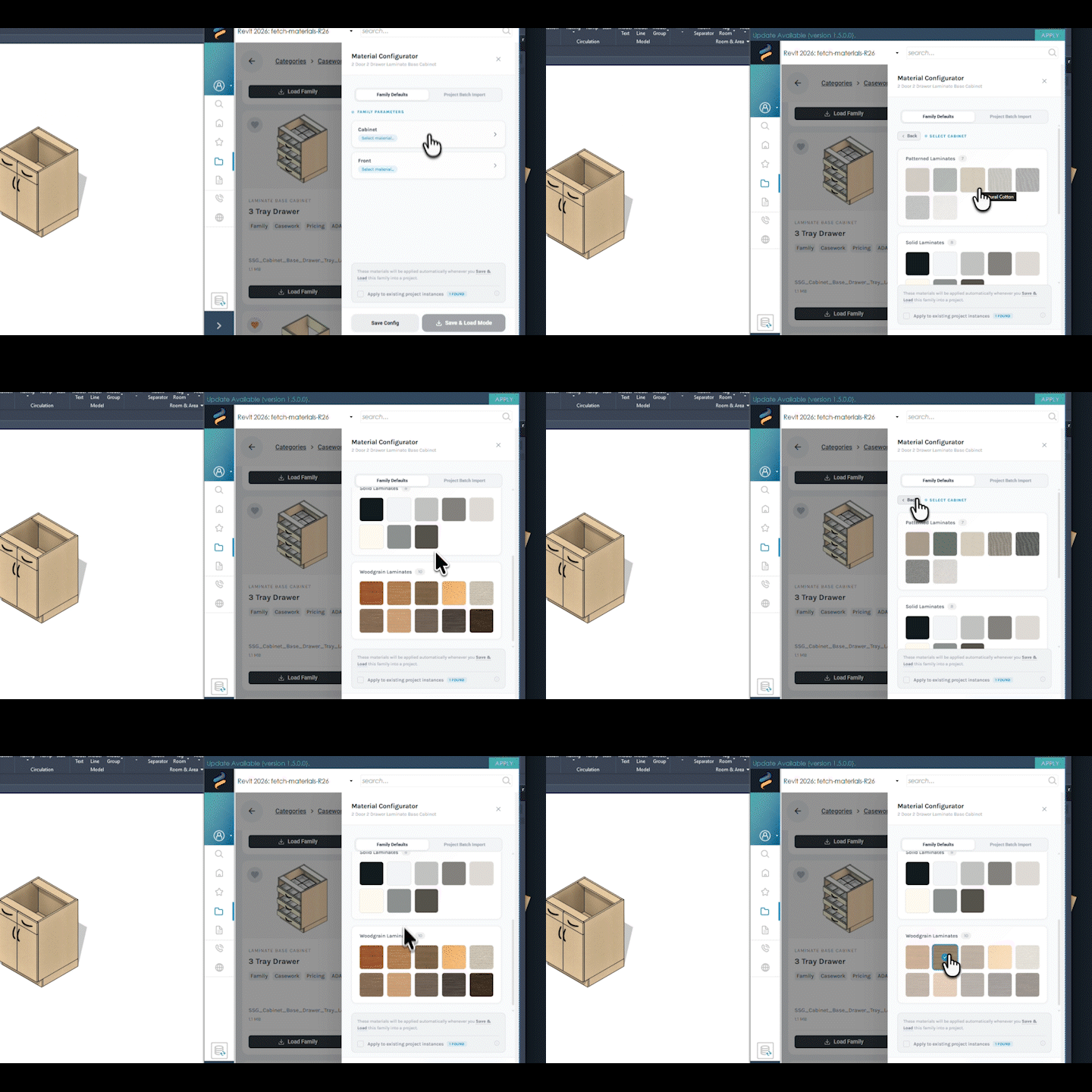
Pick a finish for each parameter and save the configuration for next time.
On the Revit side
This is where most of the work went. When a Fetch material loads into a project, the plugin uses the material's unique Fetch ID to check whether it's already there. If it is, the existing material gets reused. No duplicates, no "Concrete (3)." If it isn't, the plugin creates it cleanly, with a properly structured appearance asset and a name that won't collide with anything else in your project.
Textures download to a Fetch-managed folder with a stable, predictable path, and the material references point there. So when the model moves to another machine, goes out to a consultant, or renders in the cloud, Revit finds the textures, because they're exactly where the references say they are. The gray model, the failed cloud render, the "where did my textures go" morning: for Fetch materials, that stuff just stops happening.
Textures that follow the model
A predictable path only helps if the file is actually on the machine. That's the part every other approach leaves to you.
Revit never puts texture images inside the model file. It stores a path and expects each machine to find the image on its own. So when you sync to ACC/Forma and a teammate opens the model, their Revit is hunting for files their computer has never seen. The usual answer to that is homework. Get IT to point everyone at a network share. Every new teammate, every version of Revit, every new material, every time.
Fetch does it for them. Each material we create carries a small record of the texture files it needs, and that record is stored inside the model. When someone opens the model, Fetch reads the record, checks what's missing on their machine, and pulls down only those files in the background. No prompt, no download button, no restarting Revit. They open the model and the finishes are there.
That works the same way on a network central, an ACC/Forma or BIM Collaborate model, or a file you share with a consultant. The model carries the list, and each machine fills in whatever it's missing. If someone is offline, nothing breaks and nothing nags them about it. Shaded views look normal, and the textures arrive the next time they open the model with an internet connection.
How materials are curated
Every material in the catalog is authored and managed by the Fetch team, using the same governance model as the family catalog. That's not a limitation, it's the point. Each material is a finish you can actually purchase for that product, so if it's on the family card, you can spec it with confidence. Behind the scenes, every material carries its name, category, identity data, appearance info, and texture files under a unique Fetch ID, and it's connected to its families so the right finishes show up automatically on the right products.
What's Coming Next
Materials are the first step in a bigger idea: configuring real products, with their real options, right from Fetch. There's more planned here, and we'd rather show you when it's ready than promise dates. For now, everything above is live today.
One Source of Truth for Products and Their Materials
Fetch has always been about getting accurate, maintained manufacturer content into Revit without you having to hunt it down. Materials are an extension of the same idea. The product and its finishes live in the same place, follow the same standards, and come through the same one-click workflow you already use.
Your renderings should look like what was specified. Now they will.
Fetch Materials is live today. Open the Fetch app and look for the Materials section on your family cards. New to Fetch? Schedule a demo and we'll walk you through it.
Frequently Asked Questions
Do Fetch materials survive cloud rendering?
Yes. Textures live in a Fetch-managed folder that sits at the same path on every machine, and material references point there. Any machine with Fetch that opens the model downloads whatever it's missing automatically, so local renders, cloud renders, and a teammate's machine all find the textures where Revit expects them.
Can I apply finishes to products already placed in my model?
Yes. When you configure a product's materials in Fetch, you can apply your choices to every instance of that family already in the project. Save the configuration and the family loads with those materials selected from then on.
Where do the materials come from?
Every material is authored and managed by the Fetch team, and each one is a real finish the manufacturer offers for that product. If it's on the family card, it can be purchased for that product, which means you can spec it with confidence.
Do I need a separate library or plugin to use Fetch Materials?
No. Materials live on the family cards in the Fetch app you already use. If you're on the latest update, you already have them.
What happens when a teammate opens my model?
The finishes are there. The model carries a record of which texture files each Fetch material needs, so when your teammate opens it, Fetch checks their machine and quietly downloads anything missing. No prompt, no download button, no Revit restart. Same behavior on a network central, an ACC model, or a file you sent over.
What if someone on the project doesn't have Fetch installed?
Their documentation is unaffected. Material names, categories, identity data, colors, patterns, and schedules all come through, so their drawings and schedules match yours exactly. What they don't get is photoreal texture detail in realistic views and render engines, because Revit doesn't embed texture images in the model and there's no plugin on that machine to go get them. Open the same model on any machine running Fetch and the finishes are back.